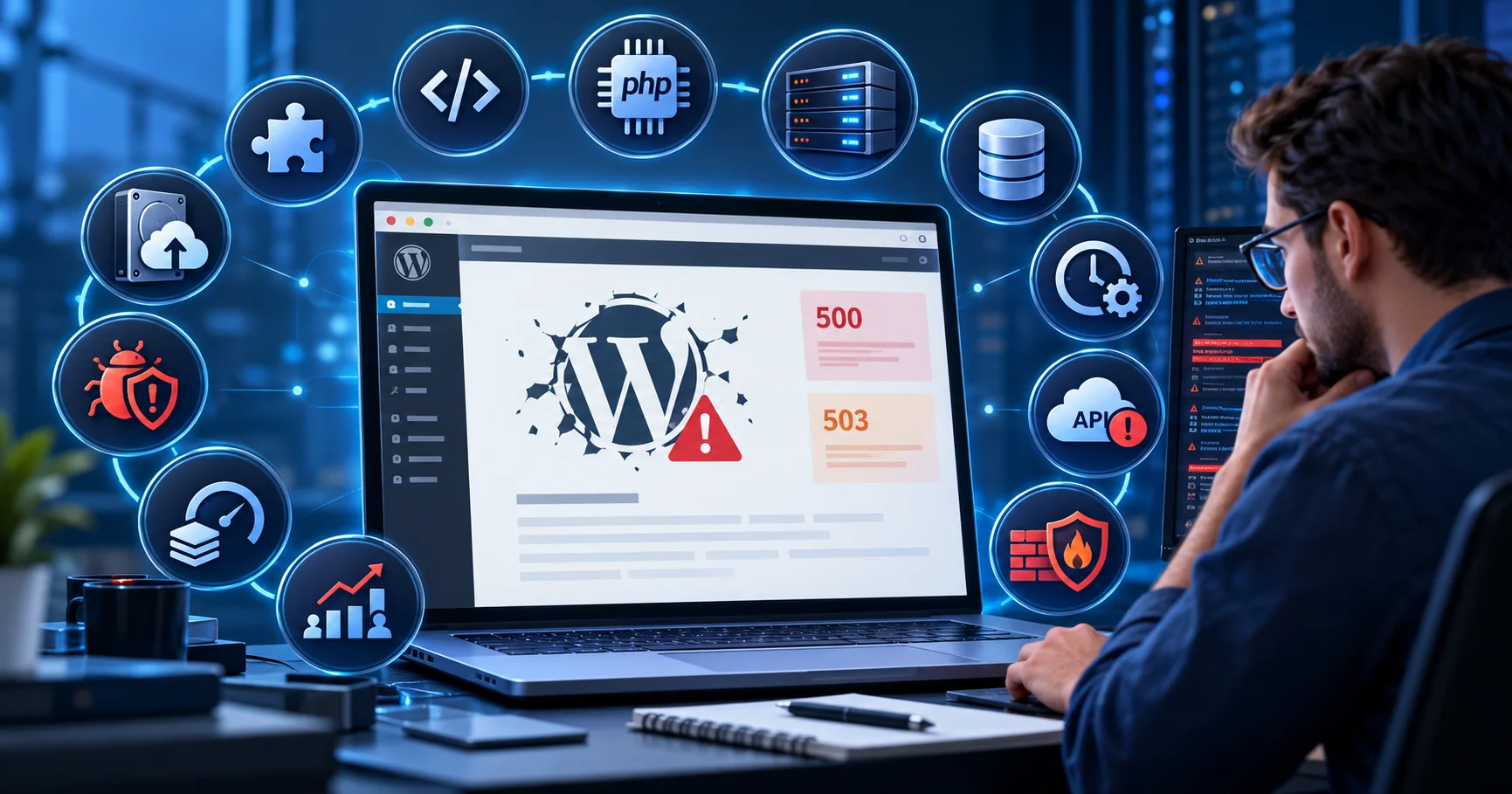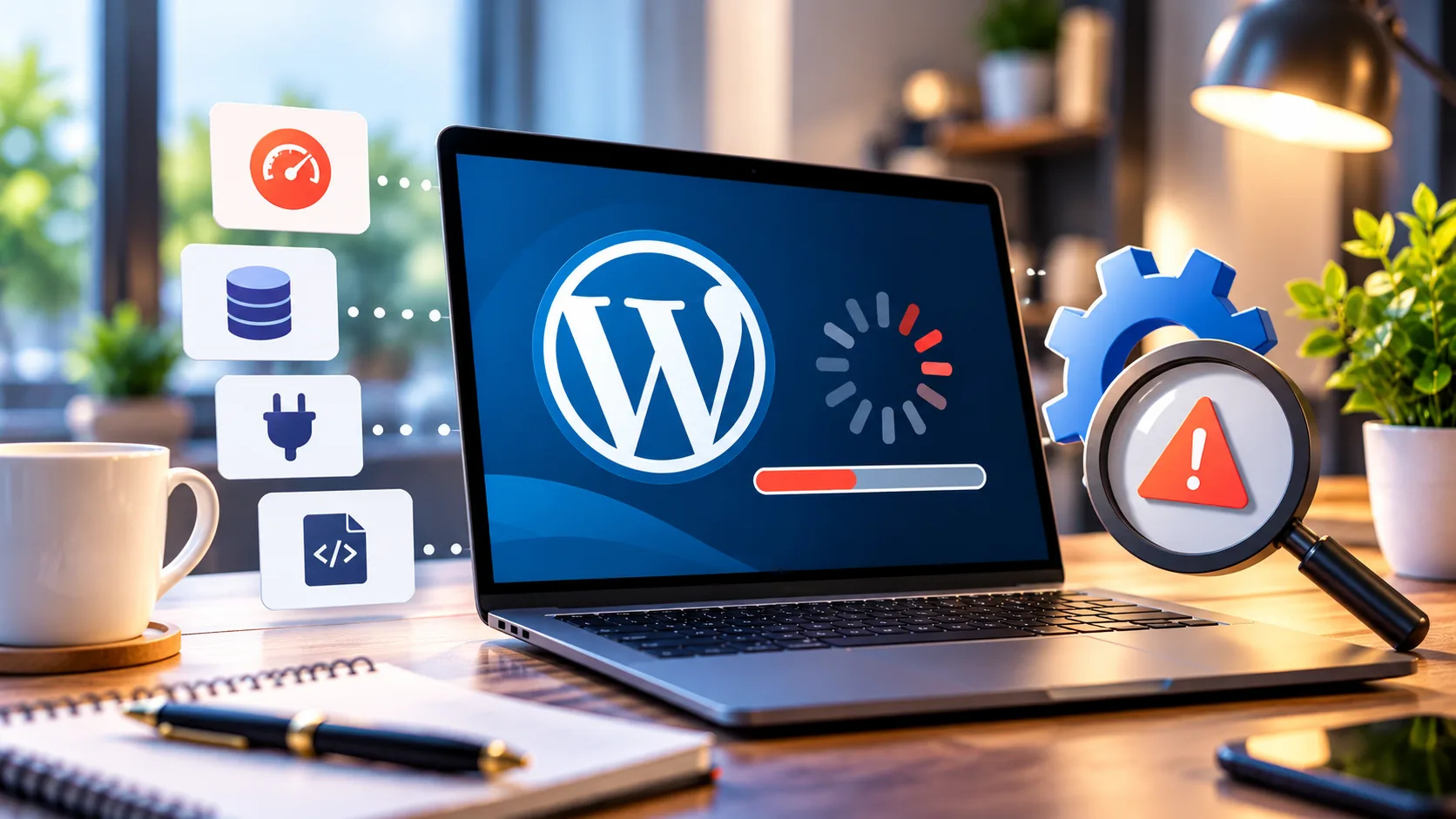
A WordPress website that crashes once is disruptive. A website that keeps crashing is a business risk. Prospects may hit an error instead of a contact form, customers may abandon a checkout, and staff may lose access when they need to update the site.
The answer is rarely “install another plugin” or “increase server resources” without investigation. WordPress errors can originate in PHP, a plugin, the database, scheduled jobs, a payment integration, hosting limits, a security rule or a failing deployment. Different symptoms require different checks.
This guide shows you how to identify the failure, protect live transactions and find the underlying cause before it returns.
Quick answer: why does WordPress keep crashing?
Recurring WordPress crashes usually happen because one or more components fail under specific conditions: incompatible code, exhausted PHP workers or memory, slow database operations, overwhelmed background jobs, external API timeouts, traffic spikes, compromised files or misconfigured infrastructure. Capture the actual HTTP status, error timestamp and server/PHP logs first. Then test one hypothesis at a time in a staging environment.
If your site is currently losing orders or enquiries, avoid running untested plugin deactivations, database cleaners or mass restores on the live store. Preserve evidence, confirm backups and engage a qualified WordPress engineer.
Start here: match the symptom to the likely fault
| What you see | Likely investigation path | First safe action |
|---|---|---|
| There has been a critical error…” | PHP fatal in plugin/theme/custom code | Check admin recovery email and PHP error logs |
| HTTP 500 / white screen | Application, PHP or server configuration failure | Capture request ID, timestamp, PHP/web-server logs |
| HTTP 502 / 504 | Gateway/origin timeout or unavailable upstream | Correlate reverse proxy and PHP-FPM logs |
| HTTP 503 under load | Resource saturation, maintenance or upstream unavailability | Check CPU/RAM, worker queue, entry limits and origin health |
| “Error establishing database connection” | Database service or connection configuration | Check database health and server errors |
| Crashes only on checkout/login | Uncached PHP, hooks, external calls or integration | Reproduce safely with approved test accounts |
| Crashes after an update | Version or extension incompatibility | Review deployment/change timeline and rollback plan |
The text on the screen is only a starting clue. A 503 does not always mean more hosting power is the correct fix; a 500 does not always mean a plugin is responsible. The logs and reproduction pattern decide.
The first 15 minutes: stop the damage before guessing
- Record the affected URLs, exact local and UTC times, error codes and whether failures happen to all visitors or only logged-in users.
- Check the hosting status page and verify the website from another network. If a CDN is involved, determine whether the error is generated at the edge or origin.
- Preserve current application, PHP, web-server and database logs; note the last plugin/theme, DNS, firewall or deployment change.
- Confirm a restorable file-and-database backup, including orders, form submissions or LMS changes since the last backup.
- Do not indiscriminately restore an old database for an active WooCommerce store. Choose an intervention that avoids overwriting new transactions.
- Create a staging clone or approved maintenance window and isolate one cause at a time.
1. A plugin or theme update introduced a PHP fatal error
A site may fail immediately after an update or only when a specific shortcode, API route or template executes. The WordPress Recovery Mode email may identify the failing component, but a missed email does not rule out a PHP fatal.
What an engineer checks: Correlate the timestamp with the update log and server PHP error log; reproduce the failing request in staging. Pin down the plugin, hook or theme file involved.
Root-cause fix: Roll back the faulty change in a controlled release, install a compatible patch or correct the custom code. Then test admin, forms, checkout and scheduled jobs — not just the homepage.
2. The PHP version and extension stack are incompatible
A PHP upgrade can expose deprecated or removed behavior in older themes and plugins. Missing or incompatible extensions can also break previously functional requests.
What an engineer checks: Compare staging and production PHP versions, active extensions and dependency requirements. Inspect fatal stack traces and the hosting change timeline.
Root-cause fix: Update or replace unsupported dependencies, correct code compatibility and test the intended PHP version on staging before changing production.
3. A request runs out of PHP memory
Large imports, image generation, reports, WooCommerce product operations and poorly bounded loops can consume more memory than the request allows. Increasing the limit may hide a memory leak.
What an engineer checks: Look for “Allowed memory size exhausted” and the responsible file/function in PHP logs. Identify which URL or job produces the spike.
Root-cause fix: Optimize the memory-heavy query or job, process data in bounded batches and right-size PHP limits only after measuring actual usage.
4. PHP workers are exhausted under real traffic
When PHP-FPM workers are all busy, uncached pages such as wp-admin, login, carts and checkout can queue or time out while the public homepage appears fine from cache.
What an engineer checks: Compare error times with PHP-FPM active/max workers, request duration, queue depth and upstream timeouts. Separate cached and uncached endpoints in the measurements.
Root-cause fix: Reduce slow requests, remove avoidable synchronous work and tune worker capacity based on available CPU/RAM and workload, not a guessed number.
5. Slow database queries or locks block requests
Large autoloaded options, expensive joins, missing indexes in custom tables or lock contention can make concurrent requests stall. A database problem can look like a PHP or hosting problem.
What an engineer checks: Use slow-query and database logs, inspect long-running statements and check performance by query fingerprint. On WooCommerce, examine the specific table and workload before modifying it.
Root-cause fix: Fix the query, index strategy or data access pattern in staging. Never run speculative SQL deletes or table optimization during checkout traffic.
6. WP-Cron or Action Scheduler overwhelms the site
A burst of scheduled tasks can compete with visitors for workers and database capacity. Delayed or failed WooCommerce tasks may also affect payments, emails and subscriptions.
What an engineer checks: Inspect Tools > Site Health, the server cron setup and WooCommerce > Status > Scheduled Actions. Group failed or repeatedly retried actions by hook, not just total row count.
Root-cause fix: Fix the failing task or integration, pace background processing and use an appropriately configured system cron where justified. Do not bulk-delete actions without determining their business purpose.
7. Payment gateways, email or CRM APIs time out
A live request may wait for a gateway, shipping quote, fraud check, CRM sync or SMTP endpoint. When downstream services slow down, customer-facing requests can appear frozen.
What an engineer checks: Capture outgoing HTTP spans, timeouts, retries and webhook logs. Determine whether the delay is synchronous and whether the external service is failing.
Root-cause fix: Move non-critical actions out of customer-facing requests, apply sensible timeouts/idempotency and retry strategies, and protect order consistency.
8. CDN, firewall, DNS or TLS settings are inconsistent
A CDN can serve some cached pages while origin requests fail, or a firewall can block legitimate admin/API traffic. Incorrect DNS or certificate changes may cause intermittent failures.
What an engineer checks: Compare edge and origin response codes, response headers, DNS answers and certificate chain. Review WAF events for the exact blocked request, avoiding broad security disablement.
Root-cause fix: Correct the specific rule or origin configuration, test across networks and keep protective controls in place wherever possible.
9. Traffic spikes and bots consume limited server resources
A promotion, crawler burst, login abuse or API polling can exhaust constrained hosting even when normal visitor counts seem modest.
What an engineer checks: Correlate source IPs, user agents, request paths, cache hit ratios and per-minute origin requests with server pressure. Validate important traffic before applying blocks.
Root-cause fix: Rate-limit abusive paths, cache appropriate public content, optimize expensive endpoints and add capacity only where load testing justifies it.
10. Caching is masking, not solving, the crash
A cached homepage can return 200 while the database, admin or checkout is failing. Conversely, incorrect full-page caching of personalized pages creates functional errors even when availability seems good.
What an engineer checks: Test anonymous, logged-in and WooCommerce dynamic routes separately. Inspect edge/server cache HIT, MISS and BYPASS behavior and whether cookies/query strings alter it.
Root-cause fix: Correct cache exclusions for personalized sessions and fix slow uncached requests. Do not cache checkout or account responses as a generic availability patch.
11. Security compromise or corrupted files are involved
A hacked plugin, unexpected file modification or malicious scheduled activity may create load and unexplained failures. Not every unfamiliar file is malware; attribution needs evidence.
What an engineer checks: Inspect change history, integrity checks, account access, file modifications and security logs. Preserve forensic evidence before cleanup.
Root-cause fix: Isolate the entry point, patch vulnerable components, rotate affected credentials, restore verified clean code where needed and monitor for reinfection.
12. Storage, permissions or incomplete deployments break operations
Full disks, exhausted inodes, unwritable uploads/cache paths, partial deploys or failed database migrations can interrupt requests without any frontend warning beforehand.
What an engineer checks: Check storage/inode usage, filesystem permissions, deployment health, database migration state and recent server logs.
Root-cause fix: Restore available capacity, correct permissions and complete or roll back deployment steps, then verify writes, uploads, emails and transactions.
Why recurring downtime can affect search visibility
Google does not automatically erase a site from search results because of one short outage. But repeated or prolonged 5xx responses matter: Google’s published crawler documentation says it slows crawling when servers return 5xx/429 errors and may ultimately remove persistently failing URLs from the index. Returning HTTP 200 with an error page is not a proper fix, either; that can confuse indexing and diagnostics.
After recovery, check Google Search Console’s Crawl Stats and Page Indexing reports, and inspect the most important commercial URLs. Verify that valid pages reliably return 200 and that robots.txt, canonical tags and sitemaps were not unintentionally changed during troubleshooting.
What a durable WordPress recovery looks like
A one-time restart is not the same as a resolved incident. Before declaring the problem fixed, a competent recovery process should produce:
- A defined symptom and the precise layer that failed (application, PHP, database, web server, edge or external integration).
- Supporting evidence: a log entry, repeatable test, resource metric, code path or verified configuration defect.
- A smallest-safe-change fix, with database/transaction protection and a rollback plan.
- Regression tests across real business journeys: contact form, login, checkout, payment callback, order email, LMS enrolment or booking workflow as applicable.
- Monitoring that can detect a recurrence and enough documentation to help the next engineer understand the system.
When should you hire a WordPress specialist?
Consider engineering help when crashes are intermittent, the host and developer blame each other, WooCommerce orders or subscriptions are involved, the same issue reappears after a restore, or you cannot identify the failing component from logs. Those are signs that the problem crosses boundaries between WordPress code and infrastructure.
Auto Computation works across advanced WordPress development, WooCommerce operations, technical SEO and website performance. The business reports 16+ years of engineering experience, more than 1,700 websites delivered and 400+ global clients served. That combination is relevant when a website needs a diagnosis rather than one more speculative plugin change.
Request a WordPress Stability Review — tell us the website URL, error type, first occurrence, hosting provider and whether sales or lead capture are affected. [Button → Contact Auto Computation]
Frequently asked questions
Why does my WordPress site crash only sometimes?
Intermittent failures often depend on load, a specific dynamic endpoint, a scheduled job or an outside service. Correlating timestamps, URLs and server logs usually narrows the cause faster than disabling plugins at random.
What does “There has been a critical error on this website” mean?
WordPress encountered a fatal error. The administrator recovery email or server/PHP logs may identify the faulty component. Recovery Mode can help regain access, but it is not a substitute for resolving the cause.
Is a WordPress 503 error always a hosting problem?
No. Resource limits are one possibility, but maintenance mode, traffic bursts and long-running plugin or database requests may lead to 503 responses. Investigate the upstream resource and request path.
Can a caching plugin prevent WordPress crashes?
Caching can reduce requests reaching the origin on eligible public pages, but it does not fix fatal PHP errors, deadlocked database operations, failed third-party calls or uncached WooCommerce checkout problems.
Should I restore yesterday’s backup immediately?
Only after checking what changed since that backup. A full database restore may discard recent orders, enquiries or customer changes. Preserve current data and choose a transaction-safe recovery path.
Why does wp-admin fail when the homepage loads?
The homepage may be served from cache while wp-admin depends on live PHP/database resources. Plugin conflicts, authentication issues and exhausted workers can affect the admin area separately.
Will WordPress downtime hurt my SEO?
Short outages do not automatically cause permanent ranking losses. However, Google documents that repeated 5xx server errors can reduce crawling and persistently failing URLs can eventually be removed from its index.
Can Auto Computation work on an existing WordPress website?
Yes. Auto Computation offers advanced WordPress engineering, performance troubleshooting and work on existing WooCommerce stores. The first useful step is sharing the symptoms and business impact for a technical review.
Final takeaway: fix the failure, not just the error page
A WordPress crash is a symptom, not a diagnosis. The best long-term result comes from measuring the failure, tracing it to the right layer, changing the smallest necessary component and validating that the business-critical journeys work again.
If your website repeatedly goes offline, throws WordPress critical errors or fails during customer activity, contact Auto Computation for a WordPress stability review before another temporary workaround costs you additional leads or orders.