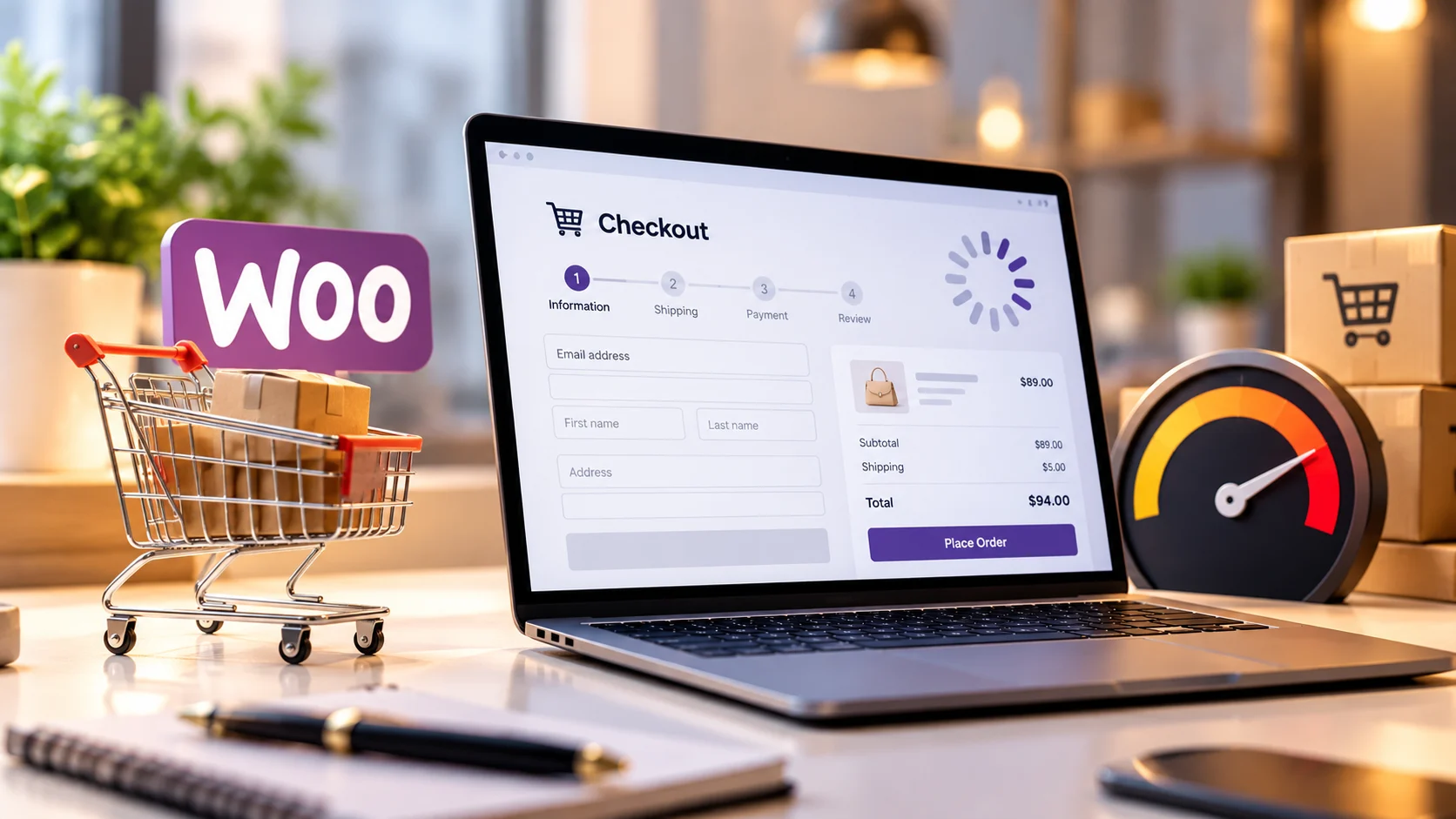
A slow WooCommerce checkout is one of the most expensive performance problems an online store can have. A shopper has already found a product, decided to buy and reached the payment stage. If shipping takes several seconds to recalculate, payment methods appear late, or the Place Order button hangs, the store is creating friction at the exact moment revenue should be completed.
The difficult part is that checkout is not a normal WordPress page. Product and category pages can often be served from full-page cache. Checkout contains customer-specific cart contents, addresses, shipping choices, taxes, payment methods and session data, so it has to stay dynamic. WooCommerce’s own performance guidance specifically says dynamic cart and checkout content must remain uncached.
That means the correct question is not “Which speed plugin should I install?” It is: “Which part of the checkout transaction is waiting, and why?”
Quick answer
If WooCommerce checkout is slow, separate the problem into four stages: initial checkout load, totals/shipping recalculation, payment-method interaction and the final Place Order request. Measure the specific slow request, then trace it through PHP, database work, WooCommerce hooks and any external API it calls. Do not cache personalized checkout pages or blindly stack optimization plugins.
Why Checkout Can Be Slow Even When the Rest of the Store Is Fast
A cached product page and a checkout page are doing very different work. A cached page can often return prebuilt HTML. Checkout has to evaluate live session data and business rules for a specific shopper.
Depending on the store, one checkout interaction may involve product validation, coupons, taxes, shipping zones, shipping APIs, payment-gateway availability, fraud checks, currency conversion, subscription logic, inventory rules, CRM hooks, analytics events and database reads or writes.
This is why a store can show an excellent homepage PageSpeed score and still have a checkout that feels slow. The revenue path must be tested separately.
Start with the symptom, not the plugin list:
| Symptom | Most likely layer to investigate first |
|---|---|
| Checkout page itself takes several seconds to appear | Origin/server response, heavy PHP work, database queries, plugin/theme overhead |
| Spinner after postcode/address change | Shipping/tax request, Store API/AJAX, external carrier or tax service |
| Payment methods appear slowly | Gateway scripts, gateway API calls, fraud/verification services |
| Place Order hangs | Payment API, synchronous hooks, inventory/CRM/webhook work, email or third party integrations |
| Only logged-in or repeat customers are slow | Session, cart/customer data, object cache, account- specific plugin logic |
| Only variable/bundled products are slow | Product object processing, extension logic, complex cart calculations |
1. Measure the Checkout Transaction, Not Just the Homepage
Run a checkout test with a real product in the cart and use a private/incognito browser session. Record the initial document request, the requests triggered when address or shipping data changes, and the request created when Place Order is clicked.
In Chrome DevTools, open Network and filter by Fetch/XHR. Sort requests by duration. The objective is to identify whether the wait is browser-side, a WooCommerce Store API/AJAX request, or a server response that is slow before data returns.
Then repeat the same journey on mobile. A store can behave acceptably on a developer’s fast desktop connection while feeling broken on a real mobile connection.
2. Check Whether the Origin Server Is the Bottleneck
Because checkout cannot rely on full-page cache, its speed exposes the real capability of the PHP and database stack. If the initial checkout document has high server wait time, investigate hosting resources, PHP workers, CPU throttling, PHP version, OPcache, database latency and object caching before touching front-end animation settings.
A common mistake is optimizing images while the checkout is spending most of its time waiting for PHP. Images matter for visual loading, but they do not explain a multi-second server-side checkout calculation.
3. Profile Database Work Instead of Guessing
WooCommerce stores accumulate operational data: orders, sessions, transients, logs, Action Scheduler records, extension tables and plugin options. The important question is not simply whether the database is “large.” It is whether checkout requests are executing slow or repeated queries.
Use a staging environment and a profiling tool such as Query Monitor or host-level APM to identify slow queries and the plugin or function responsible. Review recurring queries, remote requests and hooks during the exact slow checkout action.
Do not delete database rows simply because a cleanup plugin labels them “bloat.” Confirm what owns the data and whether it is safe to remove.
4. Check the Store API, AJAX and Checkout Blocks
Modern WooCommerce checkout flows can use the Store API heavily. This matters because a slow Store API request can make totals, addresses or payment interactions feel delayed even when the page itself appeared quickly.
WooCommerce 11.1 introduced additional work to make Store API and REST requests faster by skipping unnecessary block registration on requests that do not need it. That is one reason a store on an old WooCommerce branch should be evaluated before developers build custom workarounds around behavior that core has already improved.
As of September 29, 2026, WooCommerce 11.1.2 is the current stable release. WooCommerce 11.2 is still in beta with a planned release week of October 6. Production stores should test updates on staging rather than installing a beta release to chase performance.
5. Separate Shipping and Tax Latency from General Checkout Speed
If the checkout becomes slow only after a shopper enters a postcode, state or country, focus on totals recalculation and external services. Real-time carrier rates, tax services, address validation and multi-vendor
shipping logic may require remote requests.
Measure the response time of those calls. If a shipping provider takes two seconds to respond, no CSS minification setting can remove that network wait. The solution may involve changing API configuration, reducing repeated calls, caching safe non-customer-specific lookups where supported, or choosing a more reliable integration.
6. Diagnose Payment Gateway Delays at the Place Order Step
If checkout is responsive until the customer presses Place Order, inspect the payment path. Payment gateways may perform tokenization, fraud screening, 3-D Secure preparation, remote API calls or webhook- related logic.
Also inspect custom code attached to order creation and payment-complete hooks. A CRM sync, ERP update, inventory API, email-marketing call or custom webhook can turn a fast payment response into a slow checkout if it runs synchronously before the customer receives confirmation.
Where the business process allows it, non-critical post-order work is often better moved out of the shopper- facing request and handled asynchronously.
7. Audit Plugins by Checkout Workload, Not by Plugin Count Alone
A store with 40 well-built plugins can outperform a store with 15 poorly implemented ones. Plugin count is not a diagnosis.
On staging, use profiling data to identify which extensions add meaningful time during checkout. Common candidates include advanced shipping, subscriptions, dynamic pricing, currency conversion, product add-ons, tracking suites, fraud tools, page builders and integrations that make external calls.
Disable suspected extensions one at a time only in a safe test environment and repeat the same measured checkout journey. This gives you evidence instead of assumptions.
8. Keep Cart and Checkout Out of Full-Page Cache
WooCommerce’s official performance documentation says caching must be configured so dynamic content such as cart and checkout remains uncached. Serving another shopper’s personalized cart data from cache would be functionally incorrect and potentially dangerous.
Verify exclusions at every caching layer: WordPress cache plugin, hosting cache, reverse proxy and CDN/edge rules. Do not assume a plugin-level exclusion is enough if the host or CDN applies its own page cache.
Performance work on checkout should improve the dynamic request, not pretend the dynamic request is static.
9. Review Action Scheduler and Background Work
WooCommerce and many extensions use Action Scheduler for asynchronous jobs. A large overdue queue, repeated failures or a server that is not processing scheduled work reliably can create operational pressure around orders, subscriptions, webhooks and integrations.
Check WooCommerce > Status > Scheduled Actions for overdue or repeatedly failing tasks. Fix the cause of the backlog before deleting evidence of the problem.
10. Test Object Cache Carefully
Persistent object caching can reduce repeated database work on suitable hosts, but it is not a universal switch. Redis or another object cache should be measured under the store’s real workload, especially when sessions, inventory and plugins interact with cached objects.
After enabling or changing object caching, test product browsing, add-to-cart, cart updates, checkout totals, coupons, customer accounts and order placement. Performance improvements are only useful if data remains correct.
11. Reduce Front-End Work on Checkout
Not every checkout problem is server-side. Heavy tag managers, heatmaps, live chat, review widgets, animation libraries and marketing pixels can increase JavaScript execution and delay interaction.
Audit what actually needs to run on checkout. The checkout page usually needs fewer decorative features than the homepage. Delay or remove non-essential scripts only after confirming analytics, consent and conversion measurement still work correctly.
Google’s current Core Web Vitals targets remain LCP within 2.5 seconds, INP under 200 milliseconds and CLS below 0.1 for a good experience. These metrics should be considered together with the actual transaction timing, not used as a substitute for checkout testing.
12. Retest the Entire Purchase Flow After Every Meaningful Change
Checkout optimization has a higher risk profile than optimizing a blog page because it touches revenue- critical logic. After each meaningful change, run a complete test order.
Validate simple and variable products, coupons, guest checkout, logged-in checkout, shipping methods, taxes, payment methods, order emails, stock reduction, analytics events, thank-you page behavior and mobile checkout.
A faster checkout that miscalculates shipping or fails to record conversions is not an optimization.
A Practical WooCommerce Checkout Diagnostic Order
- Reproduce the issue with one known cart in an incognito session.
- Identify the exact slow stage: page load, recalculation, payment selection or Place Order.
- Use Network timing to identify the slow request.
- Profile the matching PHP/database request on staging.
- Check for slow external shipping, tax, payment or CRM calls.
- Review the extension or custom hook responsible for the time.
- Verify checkout/cache exclusions across plugin, host and CDN layers.
- Apply the smallest safe fix.
- Run a complete order and analytics test.
- Compare before/after timings and document the result.
What Not to Do When WooCommerce Checkout Is Slow
- Do not install multiple performance plugins and enable overlapping settings.
- Do not cache the personalized checkout page to make a speed test look better.
- Do not delete WooCommerce tables, sessions or scheduled actions without understanding what owns them.
- Do not disable payment, shipping or security scripts globally just to improve a score.
- Do not judge checkout speed from the homepage PageSpeed score.
- Do not test only while logged in as an administrator.
- Do not update WooCommerce, payment gateways or checkout extensions directly on production without
- a backup and staging test.
When a Slow Checkout Needs Engineering Instead of Another Plugin
A basic optimization plugin can help with public-page caching, compression and asset delivery. But a checkout problem involving live PHP, database queries, Store API behavior, shipping APIs, payment requests or custom hooks needs a different approach.
That is where WooCommerce engineering becomes more valuable than another settings screen. The objective is to trace the transaction, find the waiting layer and remove unnecessary work without damaging the business rules the store depends on.
Auto Computation works across WooCommerce architecture, checkout flow, performance optimization, payment and shipping logic, WordPress engineering and technical SEO. This makes it possible to diagnose the complete commerce stack rather than optimizing only one layer in isolation.
Conversion CTA
If your WooCommerce store is fast while browsing but slow when customers reach cart or checkout, request a technical strategy consultation. Auto Computation can trace the checkout path across PHP, database work, Store API requests, payment/shipping integrations and front-end scripts, then prioritize the fixes that affect completed orders.
Frequently Asked Questions
Why is my WooCommerce checkout slow but product pages are fast?
Product pages can often benefit from full-page caching, while checkout contains shopper-specific cart, address, tax, shipping and payment data and must remain dynamic. That exposes server, database, plugin and external-API latency that cached pages can hide.
Can I cache the WooCommerce checkout page?
You should not full-page cache personalized checkout output. WooCommerce’s own performance documentation says caching should allow dynamic cart and checkout content to remain uncached. Optimize the underlying request instead.
What should I check first if Place Order is slow?
Inspect the exact Place Order network request, then profile the server-side work behind it. Payment APIs, custom order hooks, CRM or ERP calls, inventory updates, webhooks and other synchronous integrations are common places to investigate.
Can payment gateways make WooCommerce checkout slow?
Yes. Payment methods can add browser scripts and remote API work. The correct approach is to measure when the delay occurs and then separate browser-side gateway code from the server-side payment request.
Can shipping plugins slow checkout?
Yes. Real-time carrier rates, address validation, multi-package rules and remote shipping APIs can add latency during totals recalculation. Measure the shipping request before changing unrelated performance settings.
Will Redis automatically fix slow WooCommerce checkout?
No. Persistent object caching can reduce some repeated database work, but it cannot fix slow external APIs, inefficient custom hooks, overloaded PHP workers or every database issue. It should be tested as one layer of a wider diagnosis.
Does WooCommerce 11.1 improve performance?
WooCommerce 11.1 includes performance improvements for Store API and REST requests, including skipping unnecessary block registration on requests that do not render or edit blocks. Stores should still profile their own extensions and infrastructure because core improvements cannot remove every store- specific bottleneck.
Should I install WooCommerce 11.2 beta to fix checkout speed?
Not on a production store simply for performance. As of September 29, 2026, WooCommerce 11.2 is still beta with release week planned for October 6. Test beta releases only in an appropriate staging or development environment.
Fix the Slow Transaction, Not the Score
A slow WooCommerce checkout is not one problem. It is a symptom that can originate in the server, database, Store API, extension logic, shipping calculation, payment gateway or browser.
The fastest route to a durable solution is to identify the exact slow stage, measure the matching request and profile that path end to end. That avoids plugin stacking, protects checkout logic and keeps optimization focused on the part of the store where performance has direct commercial value.
If checkout performance is affecting customer confidence or completed orders, Auto Computation can audit the full WooCommerce transaction path and implement the required engineering fixes.